Desktop apps
Codex
Connect writes the Anyray provider into ~/.codex/config.toml — shared by the Codex app, CLI, and
IDE extension — so plain codex routes through the gateway.
model_provider = "anyray"

[model_providers.anyray]
name = "Anyray Gateway"
base_url = "https://gateway.example.com/v1"
wire_api = "responses"
Codex speaks the OpenAI Responses API, so requests hit POST
/v1/responses. If an app or IDE model picker omits custom-provider models, set
ANYRAY_CODEX_MODEL to the model id and rerun Connect.
Auth follows how your seat was enrolled — you don't pick it in Codex:
| Enrollment | How it authenticates | Billed as |
|---|---|---|
| API key | Codex sends your personal gateway key; the gateway selects the server-held provider key. | api-key — full cost and savings, no seat fee |
| ChatGPT sign-in | Codex keeps its own ChatGPT login; the gateway passes it through (never sees your password). | subscription seat |
Tool-output trimming
Codex does not currently expose safe source-side tool-output replacement. Its PostToolUse
replacement uses decision: "block"; in code mode that rejects the nested tool promise after the
tool has already run. A successful shell, patch, or MCP side effect could look failed and be repeated.
Connect therefore does not install a Codex trimming hook. Apply and --revert remove the retired
owned hook while preserving every foreign hook. Retrieval through anyray_retrieve remains available;
source trim becomes supported only when Codex exposes replacement that preserves tool success state.
Claude Desktop
Claude Desktop routes through its third-party inference (Gateway) mode. The billing lane depends on the platform and selected auth mode:
- Claude Code subscription on a verified macOS build — the local credential helper reads your Claude Code credential from the login Keychain on demand and adds Anyray's pass-through headers. The credential goes from the local helper to Claude Desktop; setup never reads it, and the helper never persists or logs it. subscription
- Org/API mode on macOS, and Windows — the helper resolves your personal gateway key (
ark_…) at request time and the gateway uses its server-held provider key. No static key is stored in Claude's configuration. API-billed
The subscription-backed Gateway lane uses a Claude Code subscription credential. Claude Desktop's own first-party endpoint remains direct. Keep Claude Code signed in so its Keychain credential stays available; if it cannot be read, Connect fails closed rather than silently moving the request to API billing.
Claude Desktop picks its app profile from the deployment mode. Once third-party inference is active
it runs in a separate profile (Claude-3p), which has never held a Claude account session — so the
app opens signed out, with an empty conversation list.
Nothing is deleted. Your conversations belong to your Claude account, not to the local profile, and stay available at claude.ai. Chats you have while third-party mode is active live in that separate profile and come back when you configure it again. To keep the gateway lane and your history, see Your existing conversations below.
How Connect configures it:
- macOS — automatic when Connect can verify the installed build's config seam locally: the app must be 1.21459.0 or newer, and its app bundle must still ship the configuration shape Connect writes (checked at apply time, so a routine Desktop update stays automatic). Any unverifiable build is directed to the in-app flow, with no file write. When it does write, it first checks Claude is closed and that no managed policy owns the setting. Subscription selection additionally requires a readable Claude Code credential in the login Keychain.
- Windows — writes the per-user policy
HKCU\SOFTWARE\Policies\Claudeand a key-free credential helper (no admin). Restart Claude once; later key renewals are automatic. An existing machine-levelHKLMpolicy is left untouched. This lane is API-billed; selecting subscription fails closed because Connect has no Windows subscription-credential source.
To (re)configure just one machine without a full enrollment run, use anyray-connect desktop --apply
(anyray-connect desktop --revert to undo). On supported automatic per-user lanes, both the normal
adapter and desktop --apply configure the inference route and register the retrieval MCP server in
the active third-party app configuration as one coordinated, ownership-journaled flow. Known
conflicts are rejected before routing changes; interrupted writes are reported and recoverable by
re-running apply or revert. Manual-only platforms and unverifiable
macOS builds must use the supported in-app routing flow without a Connect config-file write.
Your existing conversations
Third-party inference runs Claude Desktop in its own app profile, signed out of claude.ai, so the
conversation sidebar starts empty. Nothing is deleted: your Claude Code sessions and Cowork tasks are
still on this machine in the previous profile, your claude.ai chats still belong to your Claude
account, and anyray-connect desktop --revert returns the app to the profile that lists them.
All three surfaces stay available. Third-party mode hides the Chat tab by default — the app
reports that chat "has not been enabled by your organization" — so desktop --apply sets the
chatTabEnabled key that Anthropic supports for third-party deployments (Claude Desktop 1.13576.0
and newer). You keep Chat, Cowork and Code, all routed through the gateway. The tab starts empty;
filling it is what the commands below are for.
Start with one command. anyray-connect migrate runs the whole flow: it copies everything already
on this machine, then tells you exactly what is left and why.
anyray-connect migrate
Quit Claude Desktop first. It is safe to re-run — every step skips what is already there.
Under the hood it is three steps, which you can also run individually. Which ones apply to you depends entirely on where the conversations live:
| You want back | Lives in | Needs an export? |
|---|---|---|
| Claude Code sessions and Cowork tasks | this machine, previous profile | No |
| Your claude.ai chats and Projects, back in the app | your Claude account | Yes |
| Any past chat, searchable from every client | your Claude account | Yes |
Once you have your export, hand it to the same command:
anyray-connect migrate --export ~/Downloads/claude-export.zip
Your claude.ai chats are not on this machine — the only credential that could fetch them is your claude.ai session, and Connect never holds one. That is the same privacy boundary that keeps your prompt content out of Anyray's logs, so the export stays a step you take yourself.
Bring across what is already on this machine
Start here — it is the quickest, and it covers the sessions you were in the middle of. Claude Code sessions and Cowork tasks live in the app's own profile directory, so switching profiles only stopped the app looking at them. No export and no waiting:
Same reason as below: the app rewrites its session list on exit.
anyray-connect desktop --migrate
Your sessions are in both tabs, where you left them.
This copies, never moves — the previous profile stays exactly as it was, so
anyray-connect desktop --revert still returns you to it with everything intact. Re-running adds
only what is missing.
A Claude Code session whose transcript is no longer on disk is left behind rather than migrated, because the entry would appear in the sidebar and then open empty. Connect reports the count. Your claude.ai chats are not on this machine at all, so they need the export below.
Put them back in the app
This step needs the Claude Code CLI installed on the same machine — Connect converts the export with Claude Code's own importer rather than writing transcripts itself. Without it, restore refuses and tells you so; the searchable archive below has no such requirement.
Settings → Privacy → Export data. Anthropic emails you a download link. Keep the .zip —
this step takes the archive itself, not the file inside it.
Fully quit the app. It holds its conversation list in memory and writes it back on exit, so a running app would undo the restore.
- bash
- powershell
anyray-connect migrate --export ~/Downloads/claude-export.zip
anyray-connect migrate --export $HOME\Downloads\claude-export.zip
The conversations are listed under Cowork → Recents. Anyray stays configured — routing is unchanged.
Your claude.ai Projects come across in the same step. Each one becomes a Cowork space with its
custom instructions intact, and its docs and attachments written to
~/Documents/Claude/Projects/<name> — the same place Desktop puts a space folder you create
yourself. An existing folder of that name is never written into; Connect qualifies the name instead
and tells you.
Restored conversations land in the Cowork tab. Cowork and Code are lists of local files, which is why Connect can write to them; the Chat tab syncs from your Claude account and has no local store to fill, so it comes back working but empty. The Code tab is a separate list of Claude Code sessions anchored to a working directory, which an imported chat does not have.
Everything happens on your machine, and re-running adds only what is missing — so an interrupted restore is safe to repeat.
The session-storage layout is a Claude Desktop internal with no compatibility promise, so a future
release could stop reading what Connect wrote. Keep your export file. If the layout changes, Connect
refuses rather than half-writing, and history import below still works.
Make them searchable everywhere
anyray-connect history import ~/Downloads/claude-export/conversations.json
"What did we decide about the pricing model?" — the assistant searches the archive through the
registered anyray_history MCP tool and pulls the conversation into the chat.
The archive is local. Conversations are written as owner-only markdown under ~/.anyray/history,
connect never uploads them, and anyray_history reads only inside that directory.
anyray-connect history status prints where it lives and how many conversations it holds. Any
Anyray-connected client with the MCP server registered can search it, not just Claude Desktop.
Connect never syncs or uploads the archive, and history results are excluded from the gateway-side output optimization that other tool results go through. But a conversation the assistant reads is then part of the chat, and the chat travels through your gateway like every other request — where it is subject to the usual content mode (encrypted at rest by default). Local means Anyray makes no extra copy of it, not that it is unreachable.
Both paths read a file you downloaded yourself. Connect has no way to fetch your conversations, and holding the session credential that could is something it will not do.
Optimization boundary
Gateway-routed model requests get the gateway and optimizer strategies on every lane — a
subscription seat is optimized the same as an
API-billed one. The registered anyray_retrieve and anyray_recall
tools do more than expose retrieval: they let the optimizer externalize large or duplicated context
to a recoverable handle and stash the original, so the model can pull it back on demand. Without the
MCP registered the optimizer still runs and still saves tokens, but trims context in place rather
than stashing it — nothing to retrieve, and no seat left un-optimized.
The anyray MCP server (registered automatically on supported per-user setup) is what turns on the
reversible externalize-and-retrieve path, for subscription and API-billed seats alike. On the
manual, unverified, and fleet-policy lanes the registration isn't authoritative yet, so status and
doctor report retrieval coverage as partial and optimization falls back to in-place trimming.
Claude Desktop exposes no supported hook that replaces tool results before writing them to the conversation, so Connect does not claim source-side tool-output trimming for Desktop — retrieval through the MCP is the equivalent, with no PostToolUse-style hook to install. Native Desktop tools and connectors do not all pass through user-configured stdio MCP servers, and Connect does not rewrite foreign MCP entries or copy their command, environment, or credentials into an interception layer.
In-app setup
If automatic setup can't run, configure the app by hand:
The in-app paste flow below is the API-billed lane. A selected subscription never falls back to this lane silently.
On macOS, choose Help → Troubleshooting → Enable Developer Mode in the menu bar (top of screen). On Windows, use the menu at the top-left of the sign-in screen.
Use the new Developer menu → Configure Third-Party Inference → Gateway. (Not Settings → Developer — that pane is MCP servers, not inference.)
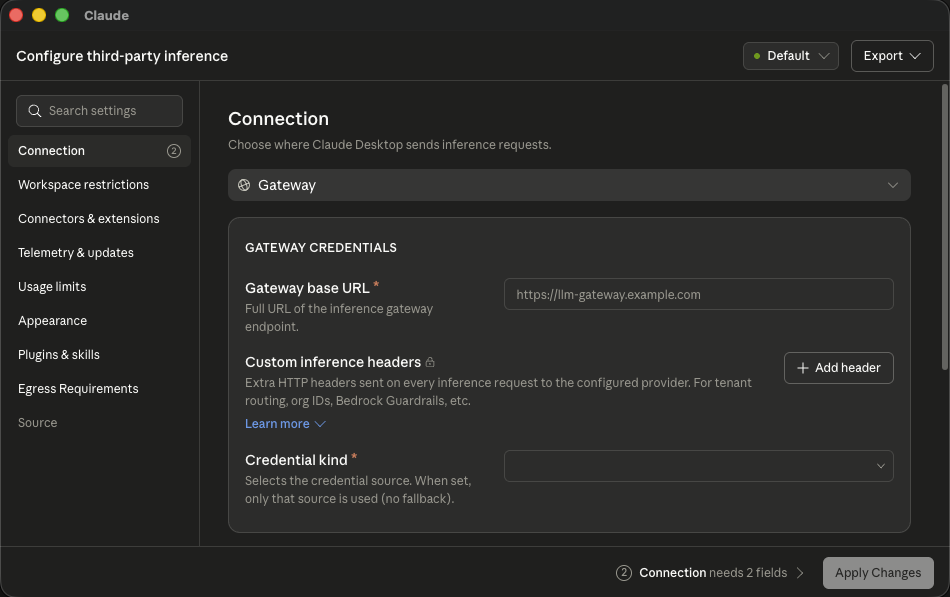
Provider Gateway, base URL https://gateway.example.com, scheme Bearer, and your
ark_… key. Click Apply locally, then fully quit and reopen Claude.
On supported automatic per-user setup, Connect also registers the Anyray MCP server (anyray,
exposing the anyray_retrieve and anyray_recall retrieval tools) in
claude_desktop_config.json. It loads at the same relaunch and appears under Settings →
Developer. The manual/unverified and fleet-policy paths do not currently make that registration
authoritative, so status and doctor report their retrieval coverage as partial instead of green.
anyray-connect doctor --verify confirms requests reach the gateway. Lost the key?
anyray-connect print-key reprints it.
Managed fleets (MDM)
Deploy to many machines without putting any personal key in the artifacts. The credential helper
holds no key — it runs as the signed-in user and resolves that user's current ark_… key at
runtime, so each user must already be enrolled.
Put the standalone anyray-connect binary at a durable, fleet-wide absolute path — e.g.
/usr/local/bin/anyray-connect or C:\Program Files\Anyray\anyray-connect.exe — and update it
in place.
--write verifies the binary and writes the wrapper atomically:
sudo /usr/local/bin/anyray-connect desktop helper --write --platform posix \
  --bin /usr/local/bin/anyray-connect
& "C:\Program Files\Anyray\anyray-connect.exe" desktop helper --write `
  --platform windows --bin "C:\Program Files\Anyray\anyray-connect.exe"
For MDM packaging instead of a local install, use desktop helper --print (same --platform and
--bin) — stdout is only the wrapper bytes.
Point --helper-path at the wrapper installed in step 2:
anyray-connect desktop --mobileconfig claude.mobileconfig \
  --gateway https://gateway.example.com \
  --helper-path /usr/local/bin/anyray-credential-helper

anyray-connect desktop --reg claude.reg \
  --gateway https://gateway.example.com \
  --helper-path "C:\Program Files\Anyray\anyray-credential-helper.cmd"

anyray-connect desktop codex --mobileconfig codex.mobileconfig \
  --gateway https://gateway.example.com \
  --helper-path /usr/local/bin/anyray-credential-helper
For a Windows Codex managed TOML, omit --mobileconfig and pass the Windows .cmd helper path.
See Bulk enrollment (MDM) for the full flow.